
The Clipboard in Pega is a temporary memory space used to store data during a user’s or system’s interaction with the application. Every time someone interacts with Pega—whether it’s a logged-in user, a guest, or a background process. Pega creates a session, and within that session, the Clipboard holds all relevant data such as case details, rule definitions, and system pages.
Each session has its own Clipboard, which is divided into pages and threads. These pages contain properties and values that Pega uses to process logic, display UI elements, and manage workflow. For example, when you open a case, Pega loads the case data into a work page on the Clipboard. If you edit a rule, the rule data is loaded into a rule page.
The Clipboard is essential for Pega’s runtime behavior. it allows the system to work with data in memory without constantly querying the database. However, because it consumes memory, especially in high-volume environments with thousands of concurrent users, efficient Clipboard management is crucial to maintain performance and avoid memory issues.
How the Clipboard Works in Pega
Inside each Pega session, Pega organizes data into threads in system memory or clipboard, specific to that session. You can think of threads like folders that hold different tasks. For example, one thread might be used to open a work item, while another might handle a background process. When a user opens a case instance directly by clicking on it in the UI rather than using Obj-Open methods in an activity, Pega performs a database interaction to retrieve the case data and stores it in temporary in the memory. If the user later makes changes to the data in the memory and saves and commits the changes to the case, the updated data is written back to the database. However, the thread associated with that case remains in memory until the case is explicitly closed—via actions like “Close”, “Cancel”, or by clicking the close button in Admin Studio. If the case remains open, the thread stays active until the session ends.
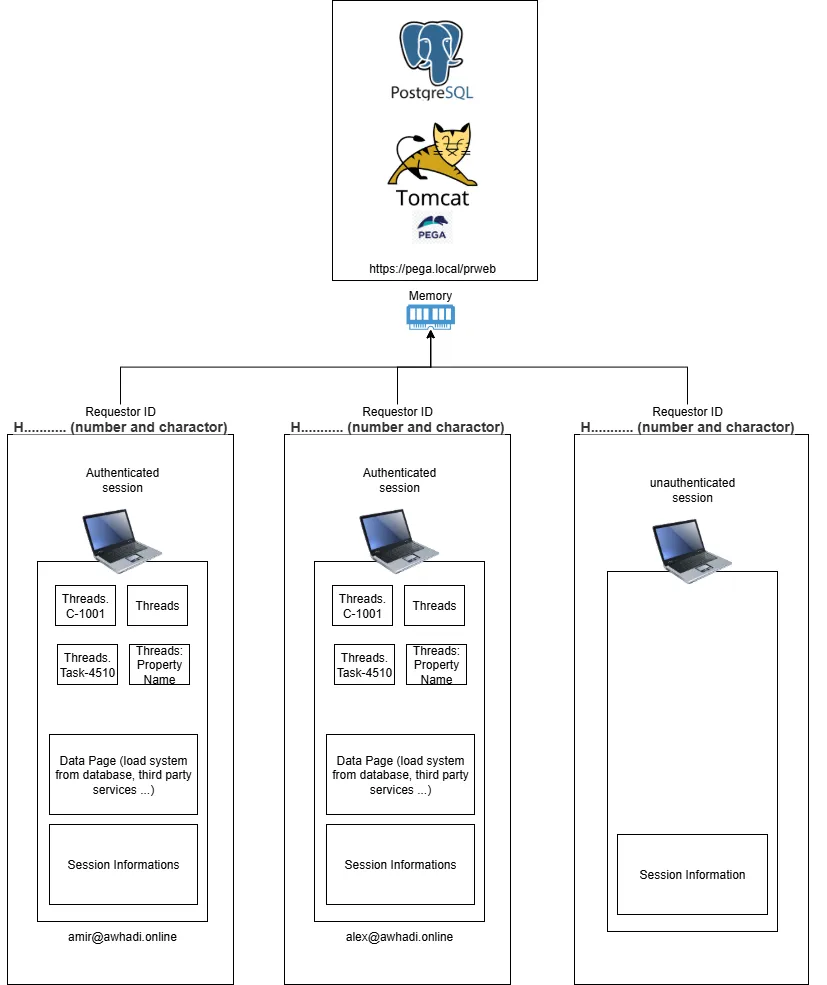
Another example: when an admin operator creates a new property, Pega immediately creates a thread in memory and loads the property data into the Clipboard from the database. This thread remains active until the property window is manually closed or the user logs out.
Now, You might wonder whether there’s a fixed limit to the number of threads in a session. The answer is no, Pega doesn’t impose a hard limit. However, having too many threads can slow down the system and make it harder to manage. In severe cases, it can even cause server or application down. That’s why it’s important to follow best practices to avoid memory leaks and performance issues.
Later, we’ll explore how to inspect active threads, switch between them, and analyze Clipboard usage—such as checking page creation time, last access time, access count, and last passivation. We’ll also dive into how to use the Clipboard tool effectively for monitoring and debugging.
Clipboard Page Types
The Clipboard in Pega contains different types of pages, and each type has its own role in how data is handled during a session.
User Pages
These are the editable pages inside a thread. You can add or remove them programmatically using rules like Data Transforms, Activities, or other rule types. The data inside these pages — meaning the property values — can also be changed during processing. Developers can create temporary pages while running a process, and these pages are only available in the current thread. Editable Data Pages like D_SomeDataPage can also appear here, no matter what scope they have (Thread, Requestor, or Node). Starting from Pega 8.4, we also have Savable Data Pages, which are editable and can be saved back to the source. These are also listed under User Pages because they are editable. Some special pages also appear here, like:
- pyWorkPage: Created when a case is opened, and holds the case data.
- pyDisplayHarness: Contains info about the currently displayed harness.
- pyPortal: Holds data about the current portal.
Data Pages
These are read-only pages and are loaded only when needed during a process. For example, when external data is required — like from a database or REST API — Pega uses Data Pages to load and store that data. All loaded data pages can be accessed with Clipboard under Data pages. A Data Page is like a smart container: it knows where to get the data, when to refresh it, and how long to keep it. Data Pages can have different scopes and based on their scopes they are listed under the System Pages:
- Thread: The data is only available in the current thread. If you switch to another thread, the page might reload with different data — or it might not exist at all in that thread.
- Requestor: The data is shared across all threads within the same session, which helps avoid loading the same data multiple times. This improves application performance by reducing unnecessary database calls.
- Node: Data loaded once, is shared across all sessions on the same server node. This is useful for large, common datasets that don’t change often.
Each Data Page can have a refresh strategy, which defines when the data should be reloaded. Also, Pega can automatically remove unused pages from memory if the “Clear Data Page After Non-Use” option is enabled.
Linked Property Pages
These are special pages on the Clipboard that Pega creates automatically when a property in one class refers to another class. This usually happens through embedded page properties or page lists defined in your data model. In simple terms: when one object (like a customer) contains another object (like an address), Pega creates a Linked Property Page to hold the data for that embedded object. These pages help manage nested data structures and relationships between objects.
System Pages
System Pages are special pages in the Clipboard that store technical and system-level information about the current session, requester, thread, and environment. These pages are automatically created and managed by Pega. They are not tied to any specific case or user data, but they are very important for understanding how Pega is handling the current interaction. Developers and the platform itself use these pages for logic, debugging, and control.
pxResquestor (Code-Pega-Requestor)
Information about the current user or system requestor and here are some essential property to know.
| Property | Value | Description |
| pzReqestorId | H… B … etc | unique identifier assigned to each requestor session and starts with different Charactors to differentiate between different requestor types, say H for Browser, B or Batch requestors … |
| pzCTKn | For example: a23bc899fca33d23a82564941ff316b2 | It is a unique security token automatically generated by Pega and stored in the requestor’s session. This token is used to validate the authenticity of requests, especially those coming from the browser UI. |
| pyUserIdentifier | Example: [email protected] (pega Operator ID) | the unique identifier of the currently logged-in user ID typically the Operator ID. |
| pxPassivationArt | Datetime value for example: 20250808T090517.118 GMT | It records the timestamp of when the session or Clipboard was passivated — meaning when it was saved out of memory to a storage location (like a database or file system). |
What is Passivation in Pega?
Passivation is a process where Pega temporarily saves session data (like Clipboard pages) to storage, either a database or the file system to free up memory on the server. Think of it like putting a paused app into sleep mode to save battery. Pega does this to keep the system fast and stable, especially when many users are active.
How does passivation Work?
A user or system starts a session and interacts with Pega. Pega stores data in memory (Clipboard). If the session becomes idle or memory usage gets high, Pega passivates the session It saves the Clipboard data to storage. Frees up memory (JVM heap). When the user returns or the session resumes, Pega activates the session, It reloads the saved data back into memory. The user continues from where they left off.
When a user or system initiates a session in Pega, the platform stores session-related data in memory—specifically in the Clipboard. This allows for fast access and smooth interaction.
However, if the session becomes idle or memory usage grows too high, Pega performs a process called passivation:
- It saves the Clipboard data to persistent storage.
- This frees up memory (JVM heap) and helps maintain system performance.
Later, when the user returns or the session resumes, Pega activates the session:
- It reloads the previously saved Clipboard data back into memory.
- The user can continue working exactly where they left off, without losing progress.
pxThread (Code-Pega-Thread)
Details about the current open thread.
pxProcess (Code-Pega-Process)
holds technical information about the current process environment. It’s automatically created and managed by Pega and is available during a session. This page is not tied to any specific case or user data — instead, it provides metadata about the runtime environment.pxSecuritySnapshot: Security context of the current user. Here are some very important informations for any senior or lead system architect about the pxProcess:
| pxCsrfMitigation | True/false | This property is related to Cross-Site Request Forgery (CSRF) protection. |
OperatoID (Data-Admin-Operator-ID)
Application (Rule-Application)
Using the Clipboard Viewer Tool in pega
Pega provides a tool called the Clipboard Viewer, which is really helpful for developers to inspect and manage session data. You can open it from Dev Studio, but it’s only accessible to users who have the ClipboardViewer privilege. The viewer shows data in a tree-like structure, organized by threads and pages. With it, you can view current data, edit property values, add new properties or temporary pages, and remove unwanted data. The Clipboard Viewer itself has three main parts. At the top, there’s a header section with a tools menu. This menu lets you analyze the Clipboard — for example, you can estimate the memory size of the current thread and requestor, see when each page was created and last accessed, and check the estimated size of each page in KB. You can also view technical details like whether a page is cached, read-only, declarative, or heavyweight, and even see the creation stack if available. To get a full analysis, you can click “Collect Details” from the tools menu.
The second part of the viewer is where you select available threads. Based on the selected thread, the pages are listed on the left side of the window. When you click on a page, the right side shows all the properties and their values. There’s also a search option to help you find specific pages within a thread. In general, the data on the Clipboard — like properties and pages — can be edited or updated using rule types such as Data Transforms and Activities. However, if you want to save that data back to the database, you need to use Java methods like Obj-Save and Commit in an Activity. Overall, the Clipboard Viewer is a very useful tool for debugging, testing, and building applications, especially when you want to understand how data is flowing and changing during runtime.
Whenever a page is selected on the left side of the Clipboard Viewer in Pega, the right side displays the page’s content, along with several action buttons like Edit, Refresh, and Actions. The Edit button allows you to modify the property values of the selected page and save the changes directly in memory. This is useful for testing or debugging logic without needing to run a full process. The Refresh button is used to reload the data from the source — usually from the database — which is especially helpful when working with data pages or when you suspect the data might be outdated. The Actions button opens a submenu with more options, such as viewing the page’s content in XML or JSON format, which is useful for understanding the structure of the data or for debugging integrations. There’s also an option to execute an activity directly on the selected page and thread, which can be powerful for testing specific logic or manipulating data in real time. These features make the Clipboard Viewer not just a passive inspection tool, but an active environment for debugging and development.
Best Practices to optimize the memory and resource usage in Pega
Managing clipboard data efficiently is crucial for maintaining system performance and stability. Each thread consumes CPU and memory, and having too many active threads can slow down the system, cause memory overload, and impact case processing and background tasks.
Here are some best practices to help you avoid performance issues and keep your application running smoothly:
Thread Management & Queueing
- Avoid unnecessary queueing: Only queue items when truly needed.
- Use standard queues for general tasks and dedicated queues for high-priority or time-sensitive jobs.
- Limit thread creation in Queue Processors:
- Each Queue Processor can use up to 20 threads per cluster.
- Set thread count carefully in the rule form.
- Monitor CPU and heap usage before increasing limits.
Optimizing Activities & Flows
- Avoid long-running activities that block threads.
- Break complex logic into smaller, reusable rules.
- Use deferred saves (Obj-Save method) to mark data for commit and finalize everything at the end of the process, instead of committing after each step.
Efficient Data Handling
- Use Data Pages for caching:
- Avoid repeated API or DB calls.
- Set proper scope and refresh strategies.
- Defer UI loading:
- Load only essential data first.
- Use deferred loading for tabs, dynamic layouts, or sections not immediately needed.
Looping & Property Management
- Avoid nested loops unless absolutely necessary.
- Use built-in functions like IndexInPageList or IsInPageList to avoid looping through large lists.
- Use Property-Remove in activities and data transforms to delete unused properties and prevent unnecessary database commits.
Clipboard Cleanup
- Remove temporary or unused pages:
- Use Page-Remove method or Data Page actions.
- To remove all instances of a declarative page, use pyDeleteAllInstancesOfDeclarativePage with the Data Page name as a parameter.
Be cautious with parameterized Data Pages—only remove the correct instance with the correct parameters.
Challenge Your Knowledge
Here are a few thought-provoking questions to test your understanding: write down your answer in the comment section.
- If you edit a value directly in the Clipboard Viewer (e.g., change pyStatusWork to Resolved-Completed), will it affect the data temporarily or permanently?
- Can you create an editable page with properties that are accessible across all threads in your requestor session?
- For example, copying tempPage.EmailAddress from thread C-1002 to work object C-1001.
- What’s the difference between a user page (editable) and a Data Page (D_PageName)?
- Where can you find parameter values used during rule execution?